Player Scorecard Guide
Step-by-step walkthrough for entering your scores
About This Guide
This guide walks you through entering your individual scores using the Player Scorecard app. The app is designed for shotgun start formats where players begin at different sets and rotate through the course.
- Enter scores for each target at each set
- Navigate freely between sets
- Review your complete scorecard
- Submit when finished
Quick Navigation
1. Login with Your PIN 2. Select Starting Set 3. Enter Target Scores 4. Navigate Between Sets 5. Review Your Scorecard 6. Submit Your ScorecardLogin with Your PIN
Access the scorecard entry system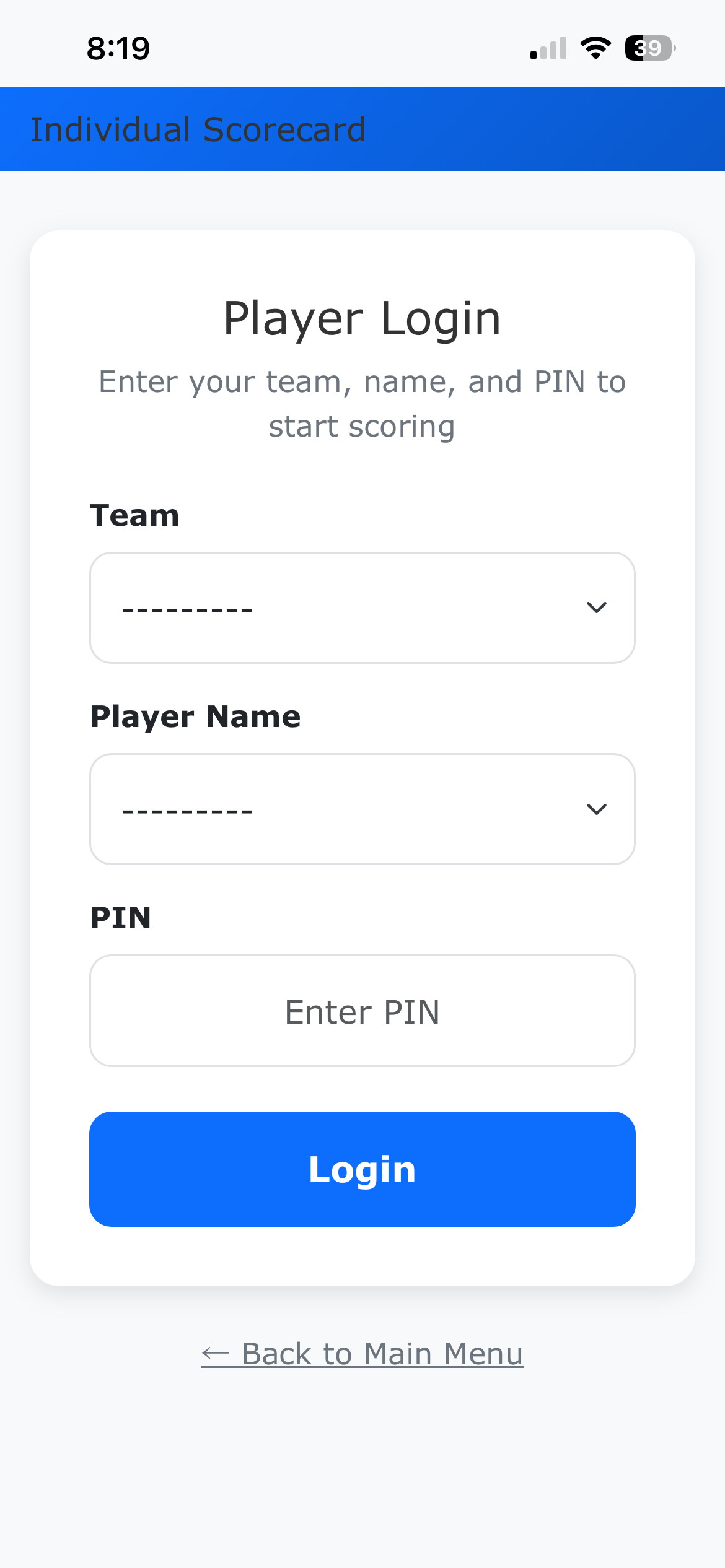
To begin entering your scores:
- Select your Team from the dropdown
- Select your Name from the player list
- Enter your personal PIN
- Tap Login
Select Your Starting Set
For shotgun start format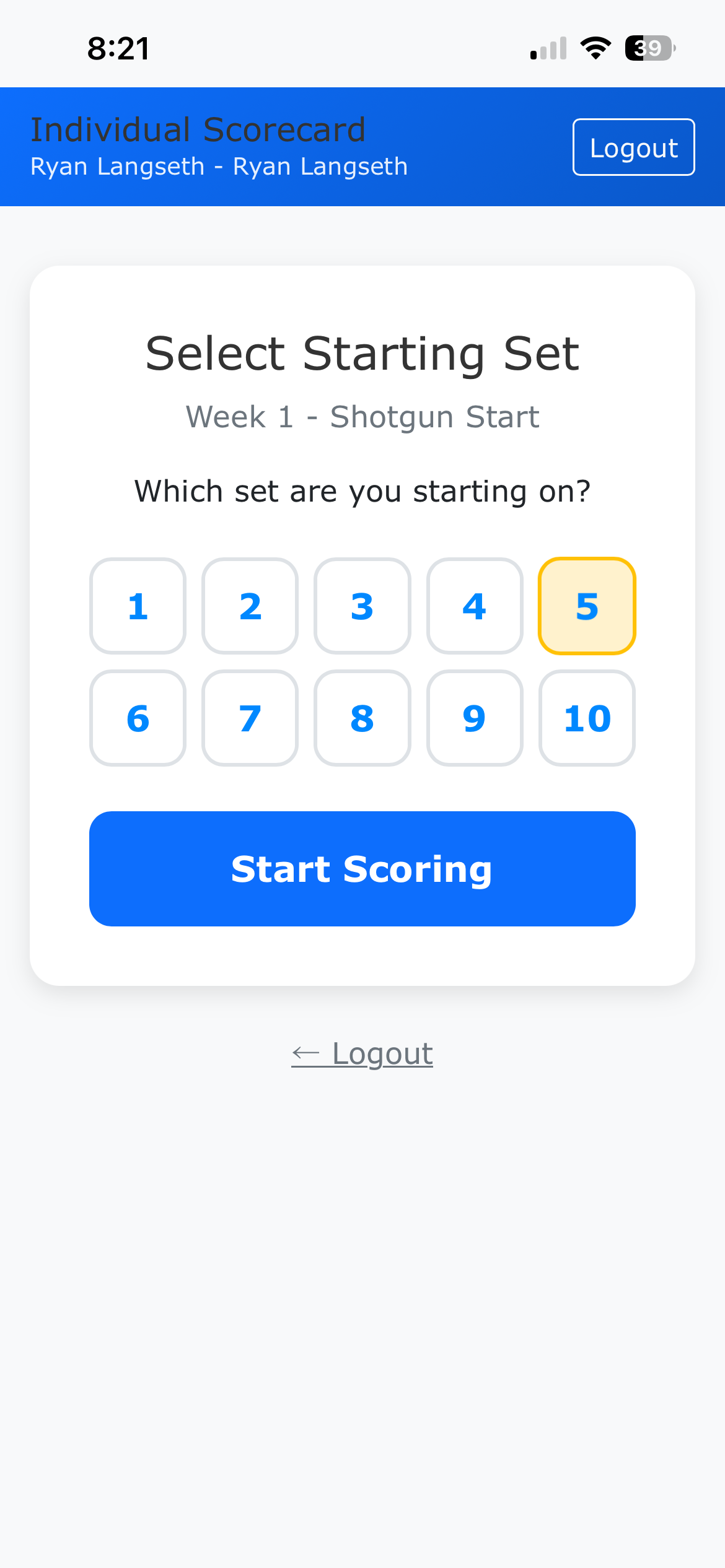
After logging in, select the set where you're physically starting:
- Review the available set numbers
- Tap the set number where you're starting
- The app will track your scores in rotation order
Enter Target Scores
Score each target in the set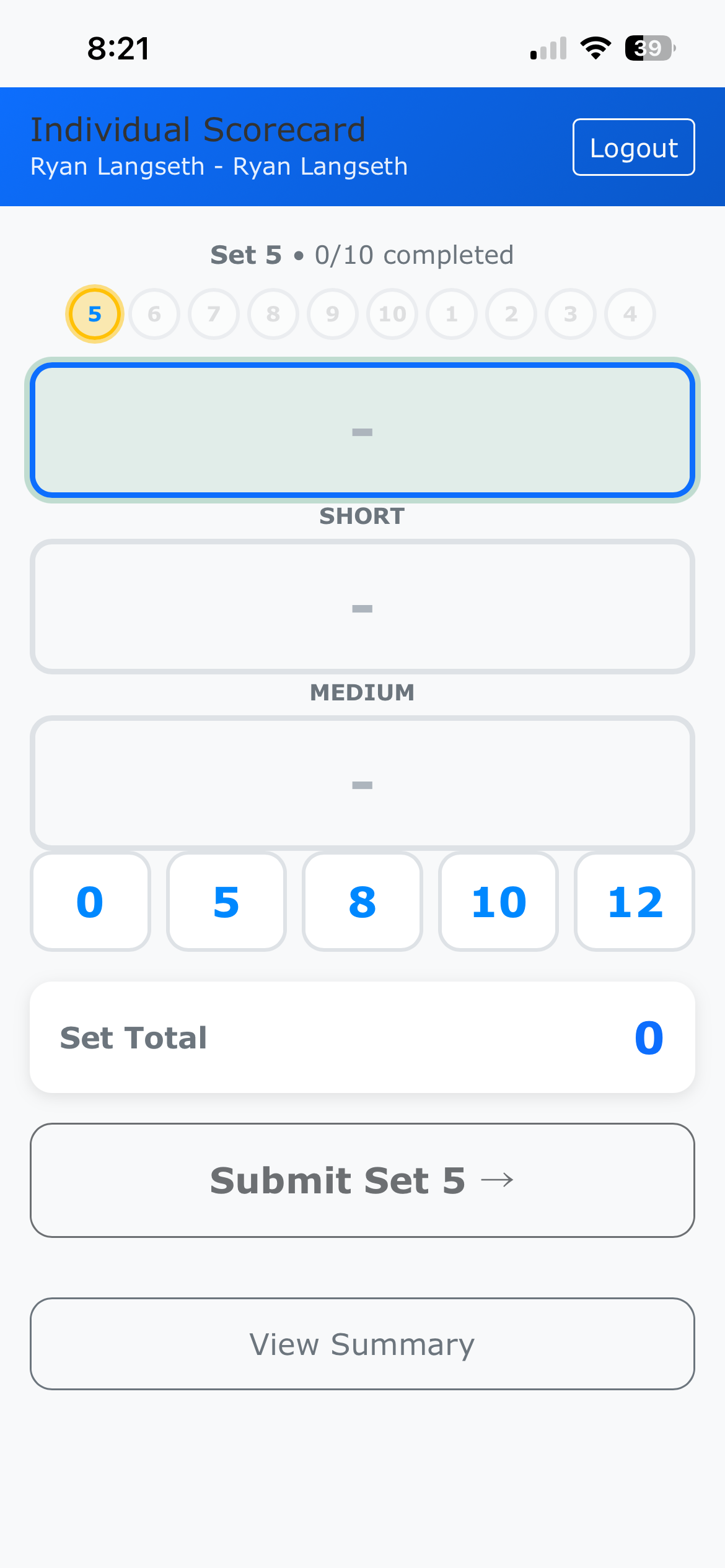
The score entry screen is designed for quick, one-handed use:
- Target Boxes: Shows each target (Short, Medium, Long)
- Score Keypad: Tap to enter valid scores (0, 5, 8, 10, 12)
- Set Total: Running total for the current set
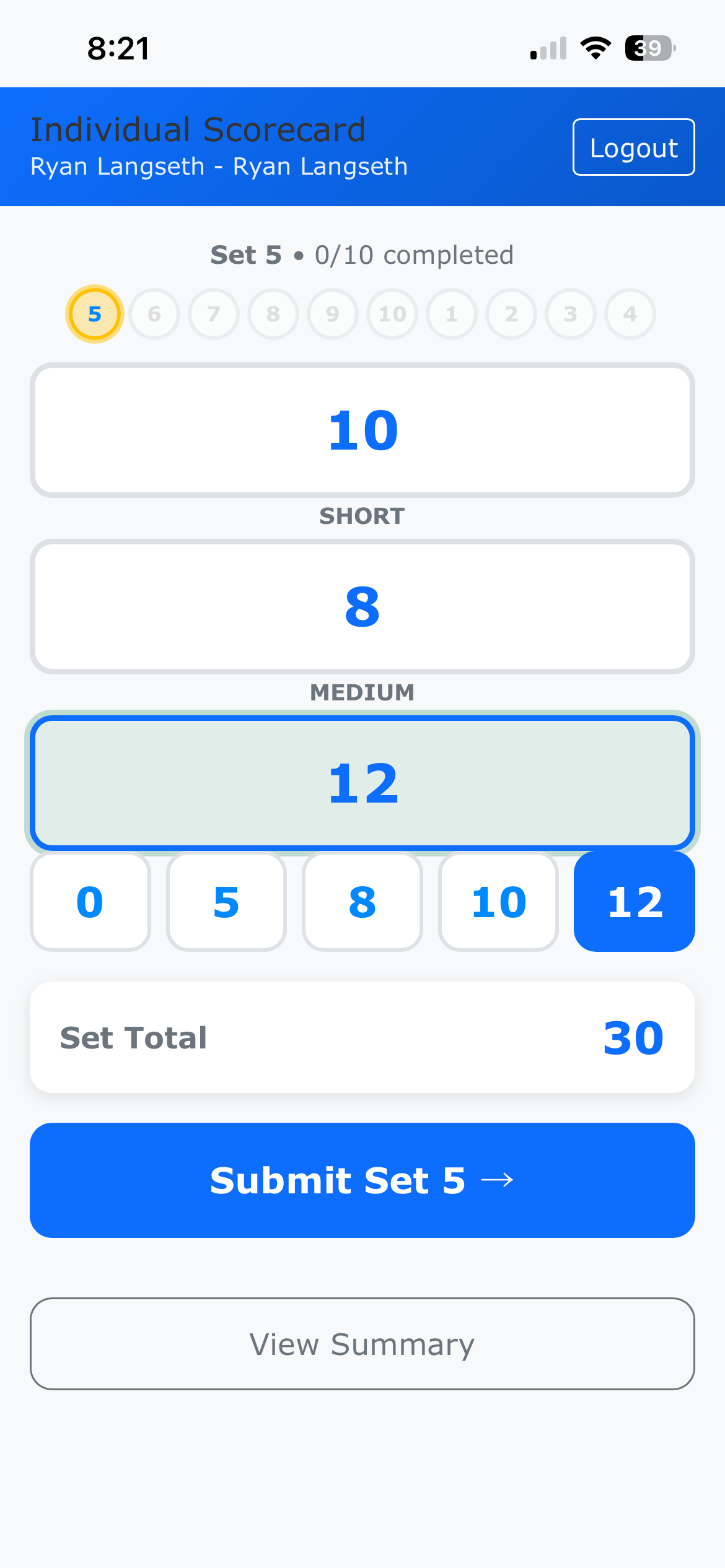
To enter a score:
- The active target is highlighted with a green border
- Tap a score on the keypad
- The cursor automatically moves to the next target
- When all targets have scores, tap Submit Set
Navigate Between Sets
Move freely between any set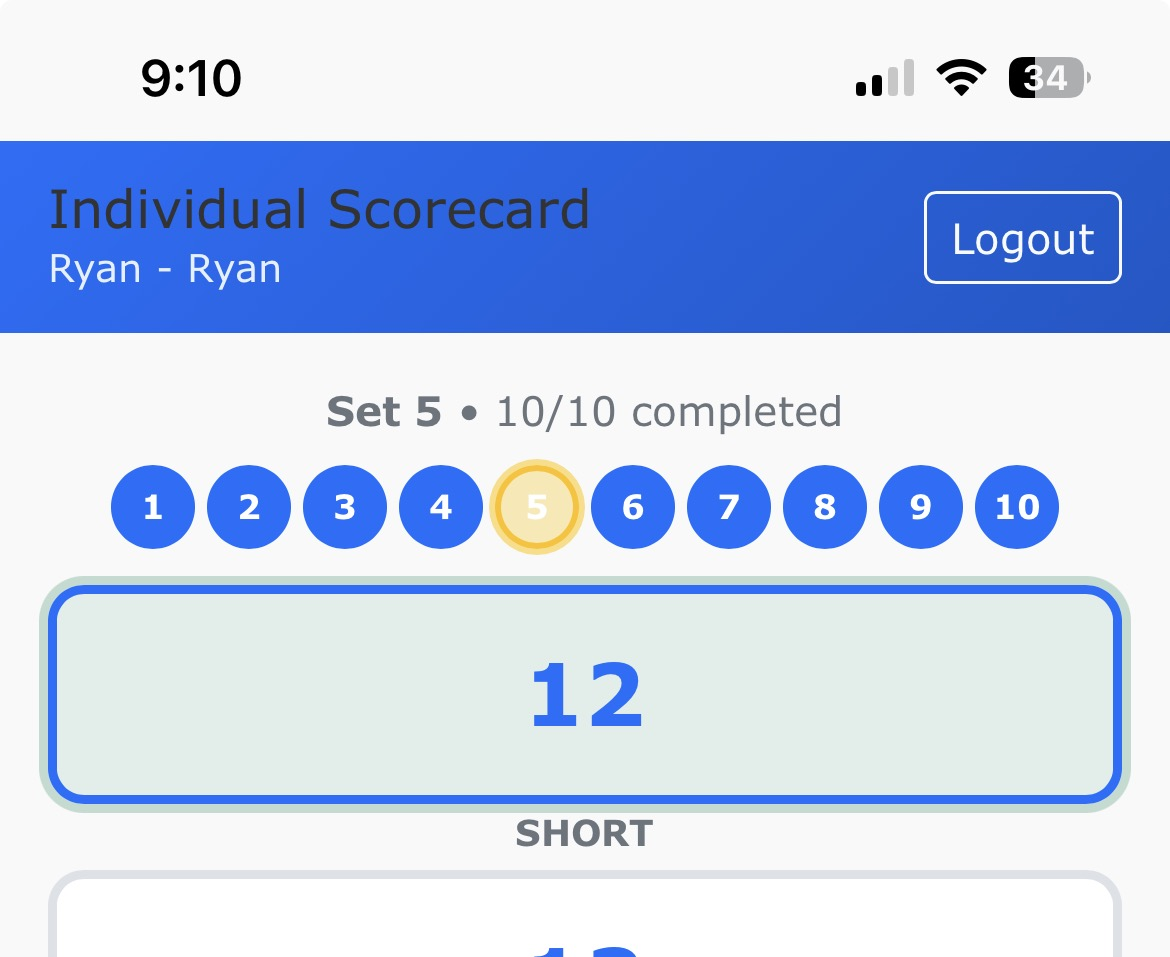
The set navigation row at the top shows all your sets:
- Green circle: Set completed with scores
- Yellow circle: Current set being entered
- White circle: Set not yet scored
To edit any set:
- Tap the set number you want to edit
- Make your changes
- Submit to save
Review Your Scorecard
Verify all scores before submitting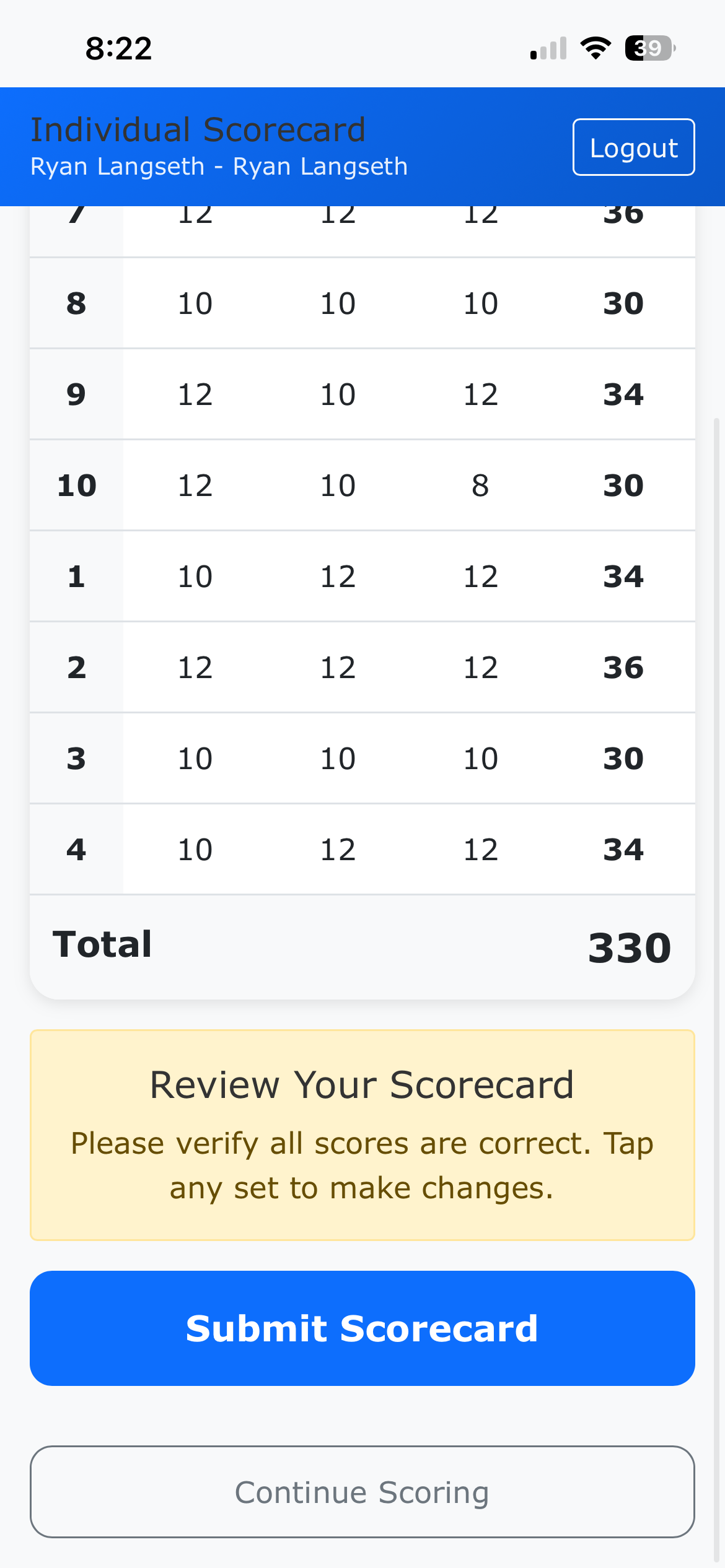
After completing all sets, review your scorecard summary:
- Complete grid showing all sets and target scores
- Running total for each set
- Overall total score at the bottom
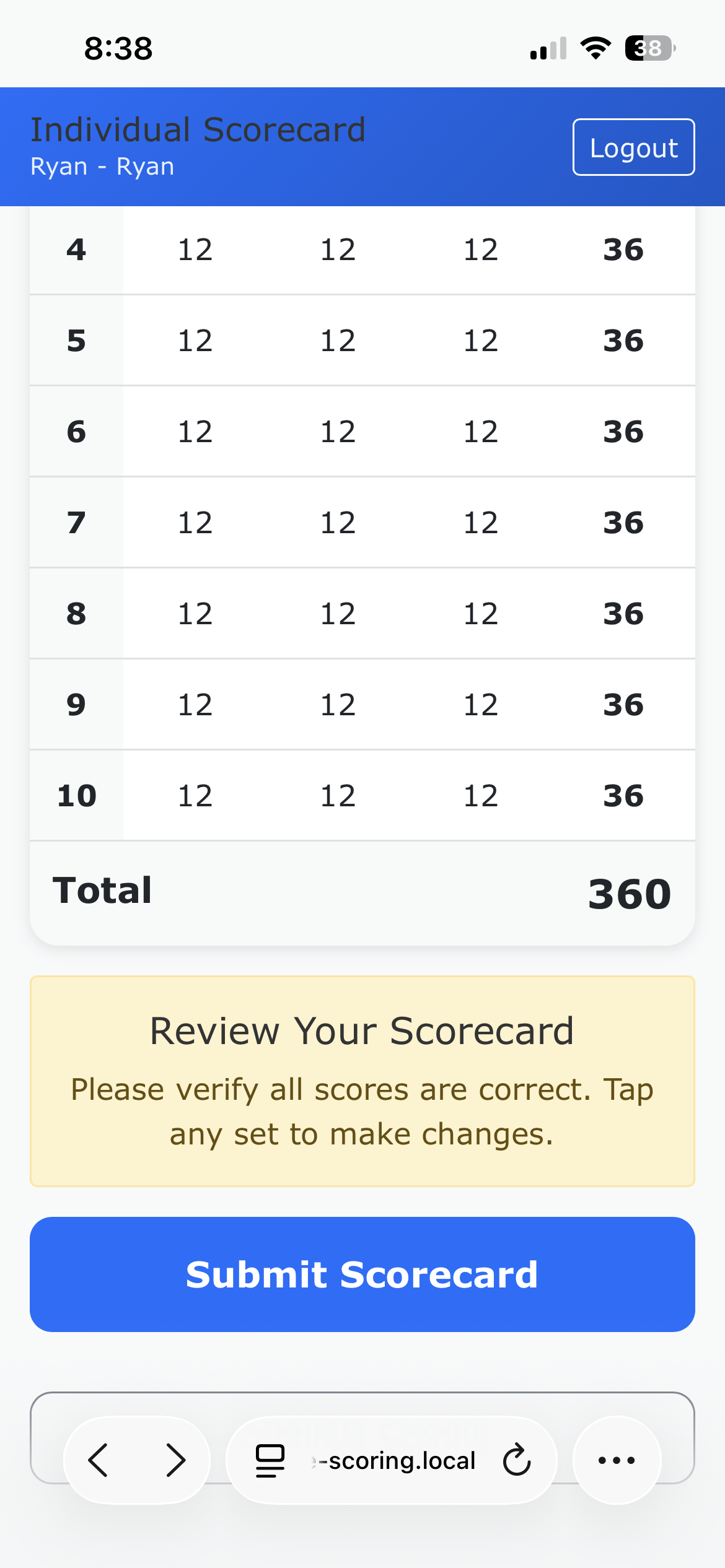
To make changes:
- Tap any row in the summary
- Edit the scores for that set
- Submit to save changes
Submit Your Scorecard
Finalize your scoresWhen all sets are complete and you've verified your scores:
- Review your total score one last time
- Tap Submit Scorecard
- Confirm the submission
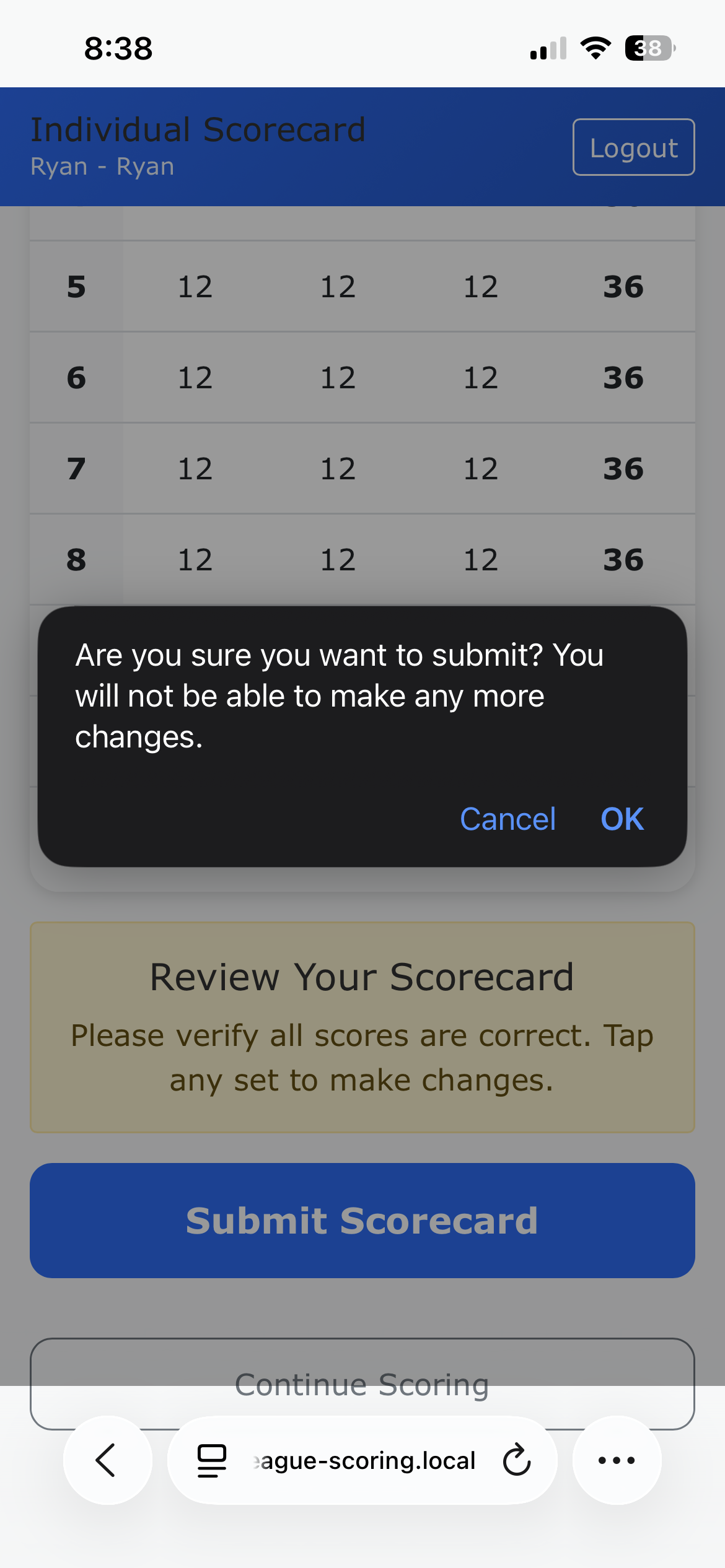
Install as an App
Add to your home screenFor the best experience, install the Scorecard app on your device:
On iPhone/iPad:
- Open Safari and navigate to the Scorecard page
- Tap the Share button (square with arrow)
- Scroll and tap Add to Home Screen
- Tap Add to confirm
On Android:
- Open Chrome and navigate to the Scorecard page
- Tap the three dots menu
- Tap Add to Home screen
- Tap Add to confirm
Need Help?
If you encounter any issues:
- Forgot your PIN? Contact your league administrator
- Can't submit? Make sure all sets are completed
- Need to change submitted scores? Contact your administrator
- Technical issues? Try refreshing the page or clearing your browser cache